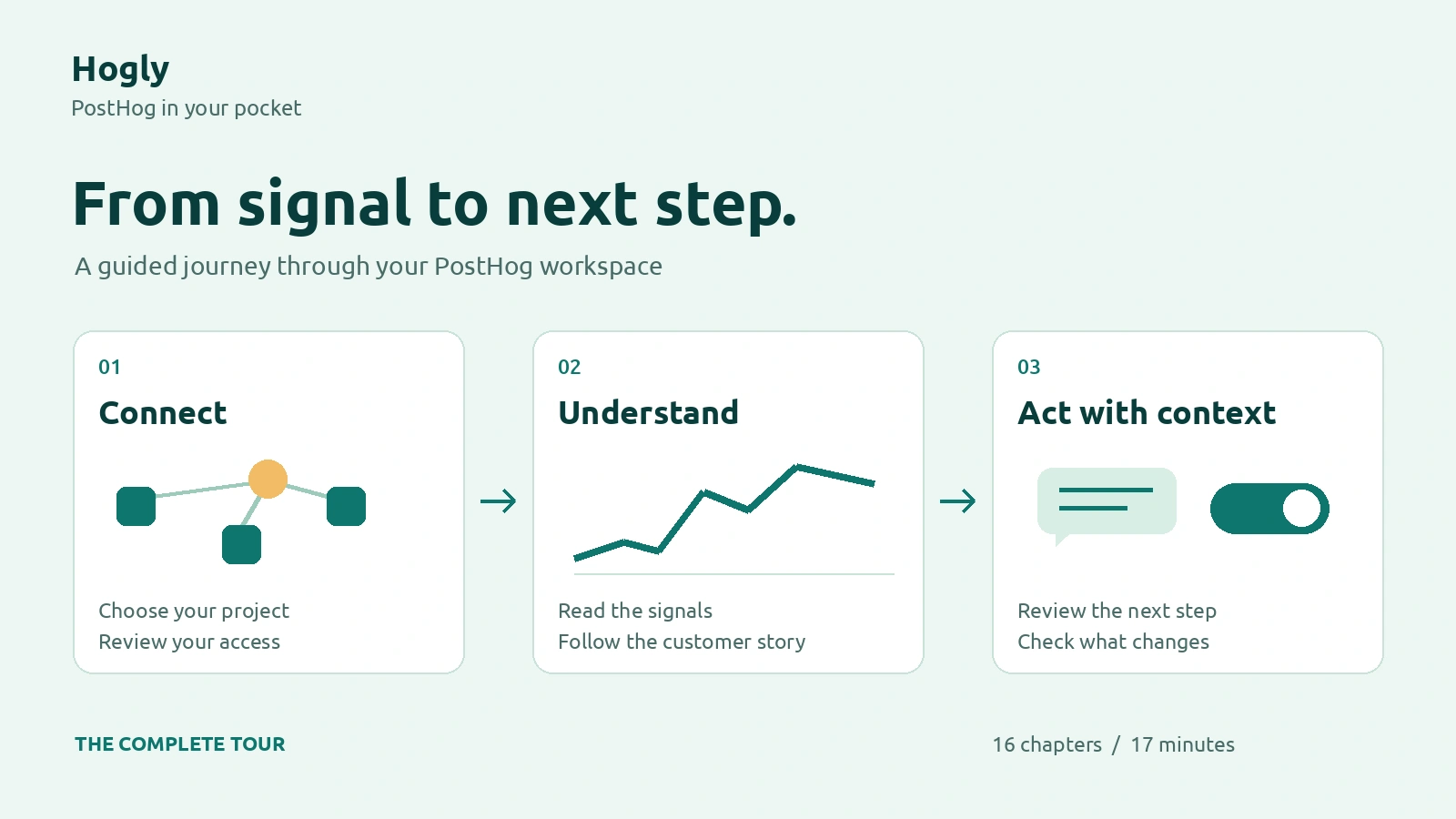
A metric changes. A customer asks for help. A rollout needs a second look. Hogly puts your PostHog workspace within reach on your iPhone, so you can move from a signal to the context behind it. Our complete video tour shows how the pieces fit together, from your first connection to the tools you can keep close every day.
The short version
- Follow a complete 17-minute walkthrough, or jump directly to one of 16 chapters.
- Connect the numbers to people, conversations and replays before deciding what to do next.
- Start safely with sample data, then check the project, permissions and impact before taking action in a connected workspace.
Watch the complete tour
Watch Hogly Complete Tour: PostHog on Your iPhone on Lessmore Apps. The video is 17 minutes and 16 seconds long, with English narration, optional English closed captions and chapter timestamps. Use YouTube’s CC control to show or hide captions; they are not burned into the video.
You do not need to watch everything in order. If you are new to Hogly, begin with the connection chapter. If you already use it, pick the workflow you want to make part of your day.
About the demonstration: the walkthrough uses fictional sample data. Its sample replies and flag changes do not affect a live project. The app’s appearance and available features can vary with your version, Hogly plan, project configuration and permissions.
Connect once, then find your bearings
The tour starts with connecting PostHog and understanding access. Choose the connection that matches your workspace, confirm the organization and project, and review the permissions you grant. If you want to explore first, sample data gives you a way to learn the interface without working on a live project.
From there, the cross-project Overview helps you decide where to look next. Instead of opening every project in turn, start with the summary, choose the project that needs attention and inspect its details. The aim is not to squeeze every possible number onto one screen; it is to make the next useful question easier to find.
Go from a metric to the story behind it
Dashboards bring related insights together. In the tour, you can see native charts, inspect values and move through different ways of reading the same product story. Saved Insights let you return to a question; the Insight editor also provides the HogQL path demonstrated in the video.
When a chart leaves you with a question about behavior, Events and People add context. Follow the event stream, inspect properties and open a person’s activity. These views are useful companions: an aggregate trend shows that something changed, while a person’s timeline helps you investigate what happened.
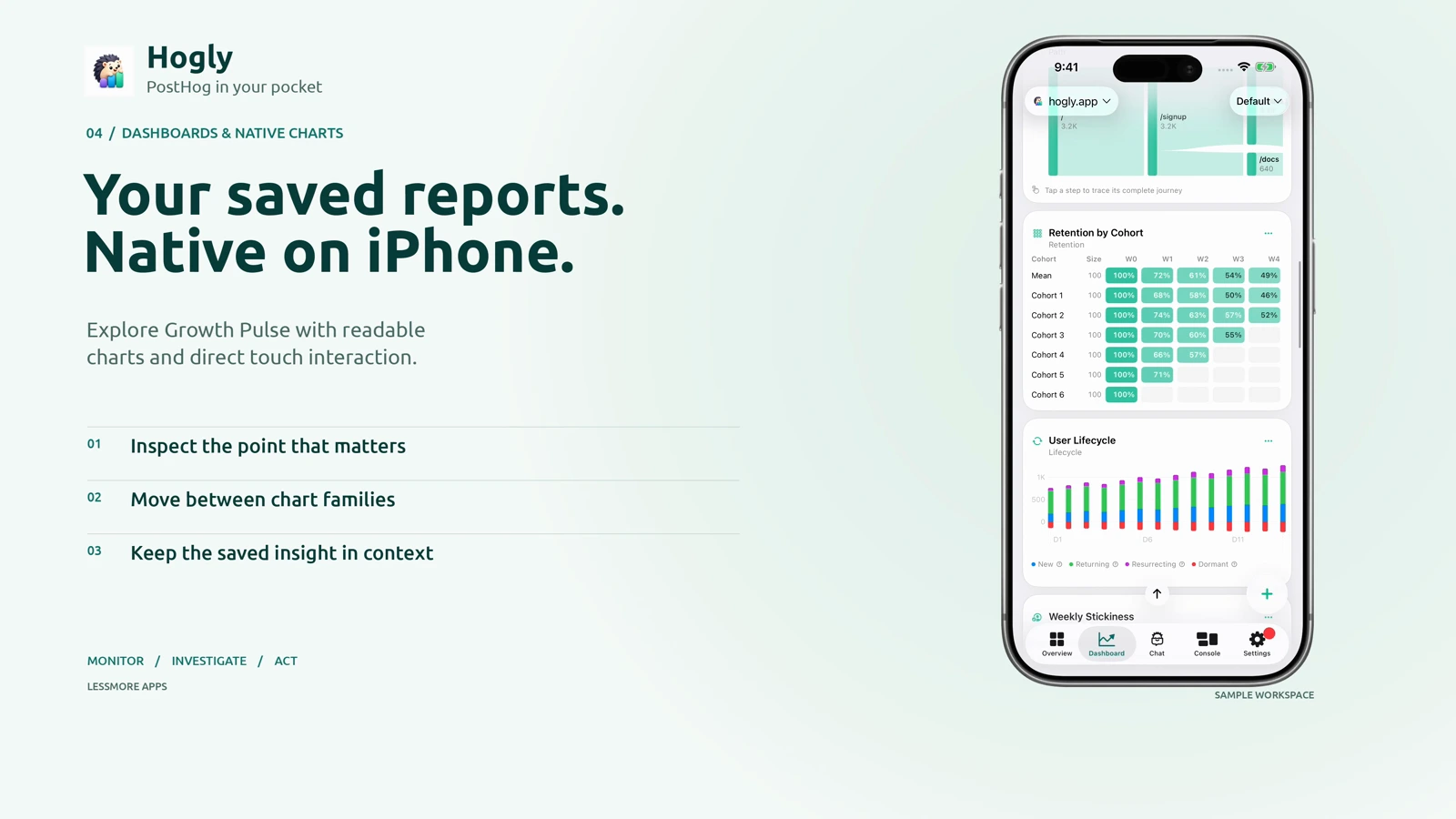
Dashboards at 02:47 · Insights and HogQL at 03:53 · Events and People at 05:03
Keep the customer’s context close
The RevenueCat chapter shows how customer context can connect to your investigation. When the relevant identity and project configuration are available, you can follow the customer through to RevenueCat. Those customer pages are external destinations, not native Hogly screens.
Customer Support brings another part of the story into view: what the person is actually asking you. The tour walks through a conversation and a sample response. Read the conversation, check the person and project, and review the draft before sending. A reply in your connected workspace is a real action, unlike the fictional sample used here.
For a repeatable routine, start with the customer’s question, inspect the relevant activity, then return to the conversation with a focused response. A metric is helpful context, but it does not replace reading what the customer said.
Investigate a problem before changing the rollout
Errors point you toward a failure; Session Replay helps you understand the experience around it. The walkthrough shows the error and replay surfaces, then introduces Replay Vision as another way to inspect a recording. Replay Vision uses your PostHog organization’s credits. Treat an AI interpretation as a starting point and check it against the recording before making a decision.
Feature Flags and Experiments sit on the action side of that investigation. Inspect the current state, understand who is affected and confirm the intended change. In a connected workspace, changing a flag can affect real users. The video demonstrates the interface with sample data; it is not a recommendation to copy its rollout settings into production.
Surveys and Cohorts add two more ways to understand the audience: what people tell you, and which group you want to inspect. Together, these tools support a loop of noticing, investigating, deciding and checking again.
Errors and Replay at 08:16 · Flags and Experiments at 10:04 · Surveys and Cohorts at 11:21
Build a practical daily check-in
Web Analytics and Heatmaps offer a website-focused view of activity. The Health and operational tools chapter then introduces additional project surfaces you may want to check as part of your routine. You do not need to inspect every surface every time: begin with the signal that matters for the work in front of you.
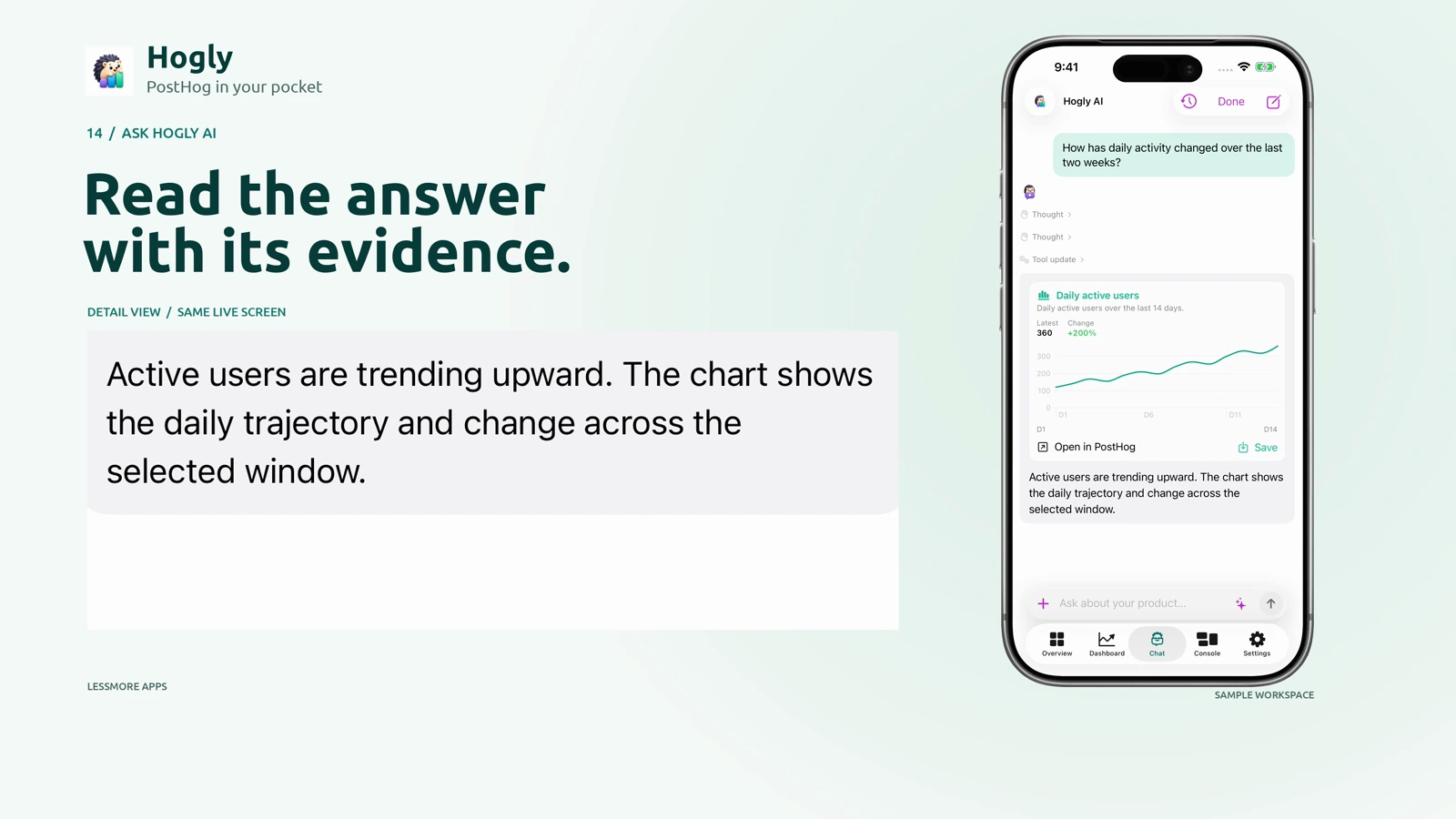
Ask Hogly AI provides a conversational path into an investigation. The tour includes the intermediate work and structured output, not only a finished answer. Be specific about the project, time period and question, then inspect the evidence behind the response. In the AI Observability demonstration, the displayed recent sample is limited and prompt and response bodies are omitted; it should not be mistaken for a complete audit of every request.
Widgets and notifications help you keep selected information close between visits. The final chapter covers personalization and getting started, so you can shape Hogly around the projects you actually manage.
Web Analytics at 12:03 · Operational tools at 12:44 · Ask Hogly AI at 14:14 · Widgets at 15:10
Try one workflow today
Start small: open the sample workspace, explore one dashboard, inspect a person and watch the chapter that interests you most. When you connect your own account, confirm the active project and permissions before moving from reading to writing.
Get Hogly for iPhone, or visit hogly.app to learn more. Subscribe to Lessmore Apps on YouTube for more product walkthroughs.
Hogly is an independent client and is not affiliated with or endorsed by PostHog Inc. Check the current plan details in the app; this tour is a feature guide, not a permanent pricing or entitlement guarantee.
Quick answers
Frequently asked.
Can I jump directly to a feature?
Yes. Use the chapter links in this article or the timestamp list in the YouTube description. The walkthrough has 16 chapters.
Can I turn the captions off?
Yes. The English captions are a separate YouTube subtitle track. Use the player’s CC control; the video’s chapter headings and brand text remain visible.
Does the video show real customer data?
No. It uses fictional sample data, and its sample replies and flag changes do not affect a live project. Actions taken in your own connected workspace can affect real data and users.
Will every feature be available in my workspace?
Availability depends on the app version, Hogly plan, PostHog configuration and permissions. Replay Vision uses your PostHog organization’s credits. Check the current details before using a feature.