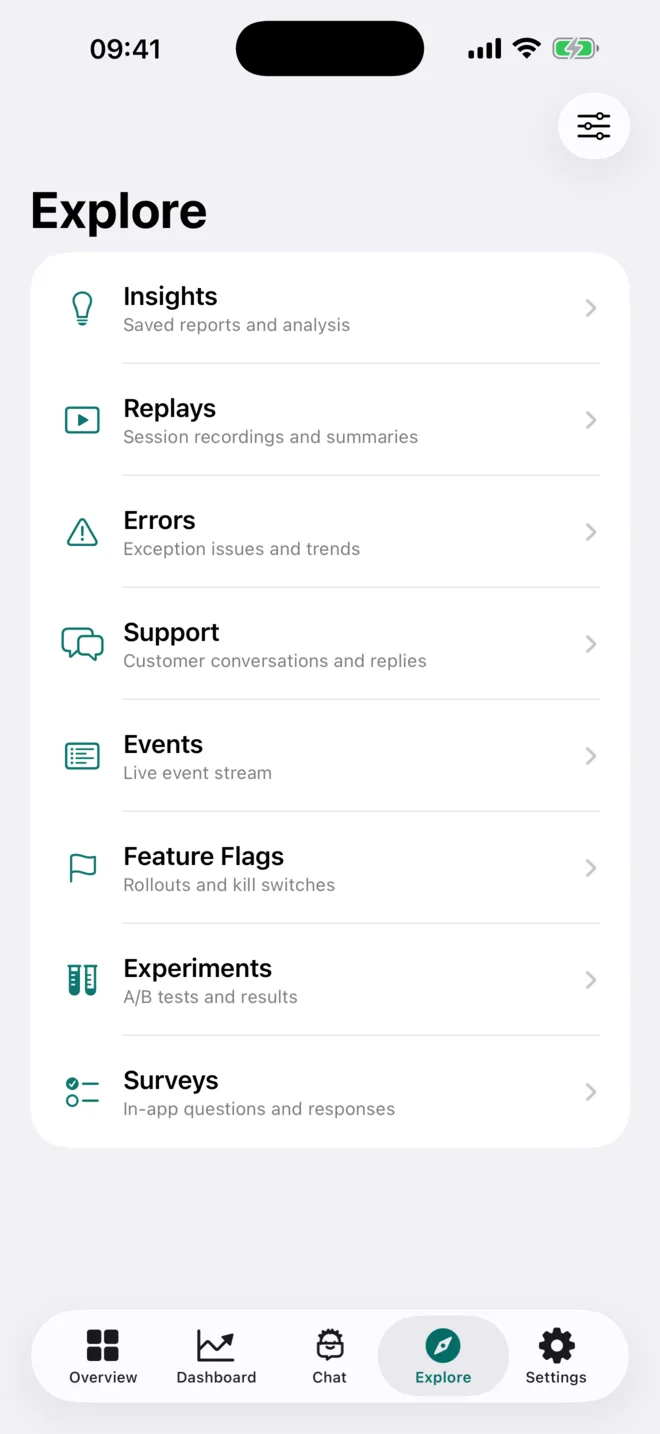
You rarely need the whole analytics office while you are away from your desk. You need a fast answer: are the products healthy, what changed, and does anything require action now? This guide turns that question into a repeatable PostHog check-in on iPhone.
The short version
- Start with a cross-project pulse instead of opening dashboards at random.
- Move from the signal to the smallest useful piece of evidence: an insight, event, error, or replay.
- Treat mobile as a focused response surface; save broad analysis and configuration work for the right screen.
What a useful mobile PostHog workflow looks like
PostHog is broad by design. A mobile workflow should be narrower. The goal is not to reproduce every browser tab on a smaller display; it is to preserve the path from signal → context → decision.
In Hogly, that path begins in Overview, where the metrics you care about from several projects can sit together. If something looks wrong, you can open the project and continue through its dashboards, insights, events, Error Tracking, or Session Replays without starting the search again.
This is particularly useful between meetings, on a commute, during an incident, or whenever a teammate asks, “Does this look normal?” You can establish whether the question is urgent before deciding where deeper work belongs.
1. Connect the workspace you already use
Install Hogly from the App Store, then connect your existing PostHog workspace. PostHog Cloud users can sign in with OAuth. Self-hosted users can connect with a personal API key.
Hogly connects directly to PostHog. OAuth uses PKCE, credentials are protected by the Apple Keychain, and Hogly does not keep a second analytics backend containing a copy of your product data.
2. Scan the product pulse before drilling down
Open Overview and look for the few metrics that tell you whether each product is behaving normally. Daily active users, new users, conversion, and error rate are common choices, but the useful set is the one tied to how your products actually operate.
A good check-in is comparative. Is one project moving while the others are steady? Did an error rate rise at the same time a key event fell? The cross-project view helps an outlier become visible before you spend time opening projects one by one.
If everything is within its normal range, stop. A two-minute check that ends with “nothing needs attention” is a successful workflow, not an incomplete analysis.
3. Follow one signal to evidence
When a number deserves attention, open the relevant project and choose the evidence closest to the question:
- Dashboard or insight for a trend, funnel, retention, or saved team view.
- Events when you need to confirm what was captured and when.
- Error Tracking for an exception, affected sessions, and technical context.
- Session Replay when the sequence of user actions matters more than the aggregate.
- PostHog AI for a focused question or to continue a recent read-first investigation.
Keep the question small. “What happened to signup after yesterday’s release?” is more useful on a phone than “Tell me everything about activation.” A narrow question produces a decision; a broad one produces another browsing session.
4. Act only when the evidence is clear
Hogly also exposes operational surfaces such as feature flags, experiments, insights, surveys, and Support. That makes it possible to complete a focused response from the same device, but proximity is not permission to guess.
For an incident, confirm the error and Replay evidence, identify the flag you intentionally want to change, and communicate the decision using your team’s normal process. Hogly does not infer which feature flag caused a Replay; you choose the action.
For a customer message, read the conversation history before replying. For an insight, check the project and time range before editing. The best mobile workflow is fast because it removes navigation, not because it removes judgment.
A five-minute routine you can repeat
- Open Overview and scan the pinned metrics across projects.
- Choose one outlier, if there is one.
- Open the closest supporting evidence.
- Decide: no action, respond now, or hand off for deeper work.
- Leave a clear note in the place your team already coordinates.
That routine is the real value of PostHog on iPhone: not analytics for its own sake, but the ability to stay oriented and keep a customer or incident moving when your laptop is somewhere else.
Quick answers
Frequently asked.
Is Hogly an official PostHog iPhone app?
No. Hogly is an independent native client and is not affiliated with, endorsed by, or sponsored by PostHog Inc.
Does Hogly work with self-hosted PostHog?
Yes. Hogly is designed for PostHog Cloud with OAuth and also supports self-hosted PostHog through a personal API key.
Can I use the same workflow on iPad?
Yes. Hogly runs on both iPhone and iPad, so the same connected projects and focused mobile workflow stay available on either device.