A customer has just tried your new feature. Something feels wrong, and they take a moment to tell you. That message is a chance to understand the product through someone else's experience. PostHog Support helps them reach you from inside your product, with useful context attached. Hogly keeps the conversation within reach when you step away from your computer.
The short version
- Make it easy to report a problem where it happens, without asking customers to switch to their email app.
- Use PostHog's available person, event, and replay context to understand the feedback before answering.
- Respond from Hogly on iPhone, using personal reply templates as an editable starting point.
Every piece of feedback is a chance to learn
A bug report tells you where a real person got stuck. A feature request tells you what they were trying to accomplish. Even a question about a button can reveal a gap in your onboarding or product copy.
Analytics can show that people leave a flow. A conversation can help you understand what they expected at that moment. Together, they give you a better starting point for deciding what to improve.
Asking someone to find your support address, open an email app, and reconstruct the problem adds work just when they are already frustrated. An in-product feedback entry lets them begin the conversation while the experience is still fresh.
A useful first reply shows that someone has understood the issue. You may be able to answer immediately, or simply explain what you will check and when you will follow up. Both are more helpful than leaving the customer wondering whether their message reached anyone.
What PostHog Support adds to the conversation
PostHog Support brings customer conversations into the same platform as your product data. For a team already using PostHog, that creates several practical advantages:
- Feedback starts inside the product. The web widget gives customers a place to ask for help without composing a separate email. A custom interface can use the same Support backend.
- The report has product context. Widget tickets carry session and identity context, helping you connect the conversation to available events, errors, and session replays. A recording can clarify the sequence behind “this button doesn't work.”
- You can ask better follow-up questions. Check the context you already have, then ask for the missing detail. The customer should not need to repeatedly describe information your product has already recorded.
- Conversations have an owner and a status. The Support inbox provides assignment, priorities, tags, filters, and ticket states. Your team can distinguish something being investigated from something waiting on the customer.
- Existing channels can meet in one inbox. PostHog also documents email, Slack, and GitHub channels with two-way conversation sync. Customers can keep the channel that suits them while your team works from a shared ticket history.
Email is still useful, and it already works on a phone. The advantage here is having the conversation connected to product context and ticket actions. You can make in-product feedback the easiest path and connect your existing support email for customers who prefer it.
Add PostHog Support to your own project
For a website or web app, begin with the official Support getting-started guide. A practical setup sequence is:
- Connect your web app to the right PostHog project. Follow the JavaScript SDK installation guide. If you already use PostHog, reuse that initialized client and check that your SDK is current.
- Enable Support and the in-app widget. In PostHog, open Support → Settings, enable Support, then enable the In-app widget and save. The widget guide covers the greeting, button color, position, allowed domains, and optional name/email form.
- Connect feedback to the right person. Follow PostHog's identification guide for your signed-in users. Review the widget guide's identity-verification and conversation-recovery options when you need customers to resume conversations across browsers.
- Set up the context you need. If you want to investigate using recordings, follow the Session Replay installation guide and configure recording and masking for your product. Capture useful product events so a ticket has a meaningful journey to refer to.
- Test the complete conversation. Send a clearly labeled test message from your product, find it in the correct Support inbox, reply, and verify the reply appears for the test customer. Check the person and available session context as well as the message itself.
Want a feedback button that fits your product?
The Support JavaScript API reference documents posthog.conversations, including availability checks, widget visibility, sending messages, and building a custom chat UI. That is the place to start if you want to integrate Support into your own Help screen instead of using the default floating widget.
These widget instructions are for the web. For a native customer-facing app, verify the current supported integration path for your stack. Hogly is the operator's mobile client for your PostHog tickets; installing it does not add a feedback interface to your own product.
You can add other channels later using PostHog's guides for email, Slack, and GitHub. Start with one working conversation before expanding the setup.
Take that conversation with you in Hogly
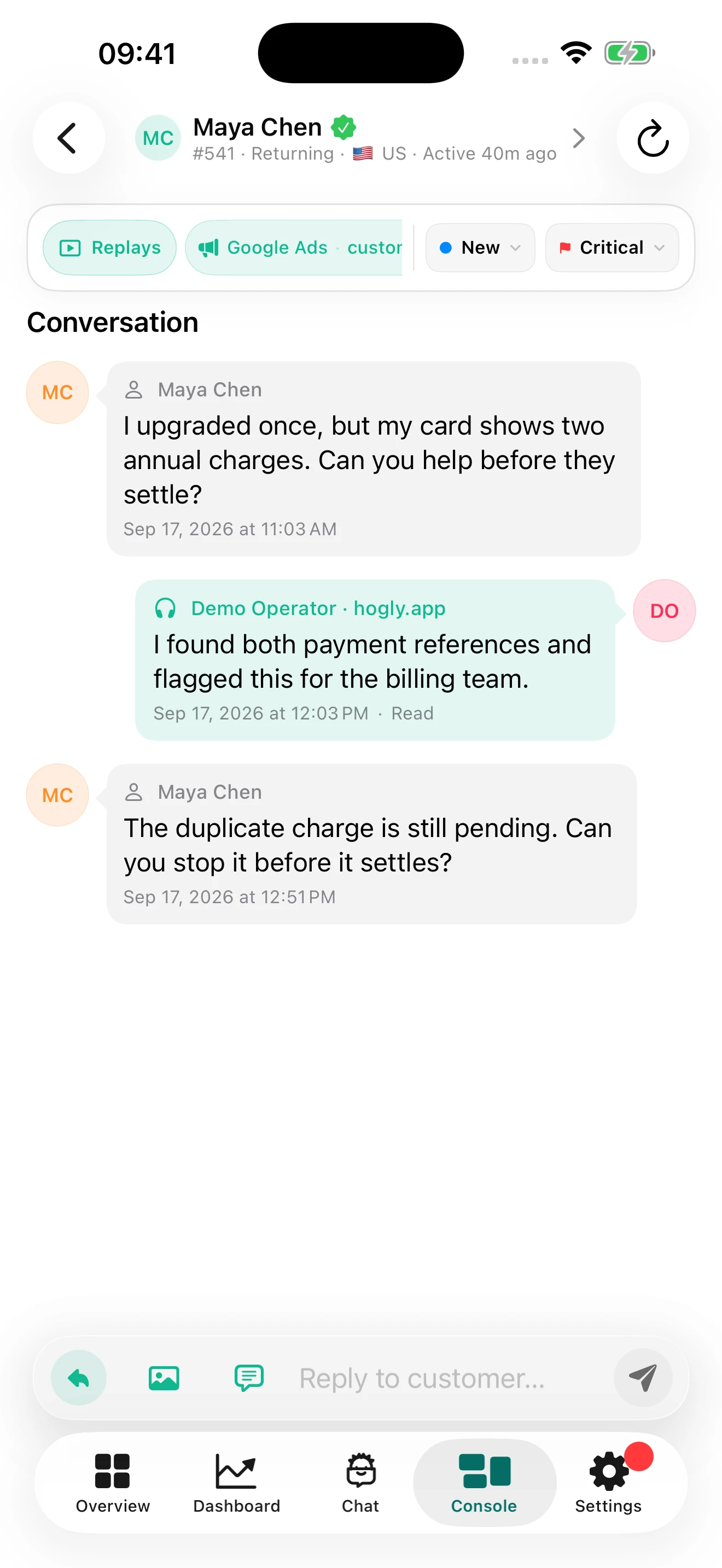
Once tickets are arriving in PostHog, connect the corresponding project in Hogly. On iPhone, open Console → Support to find the conversation.
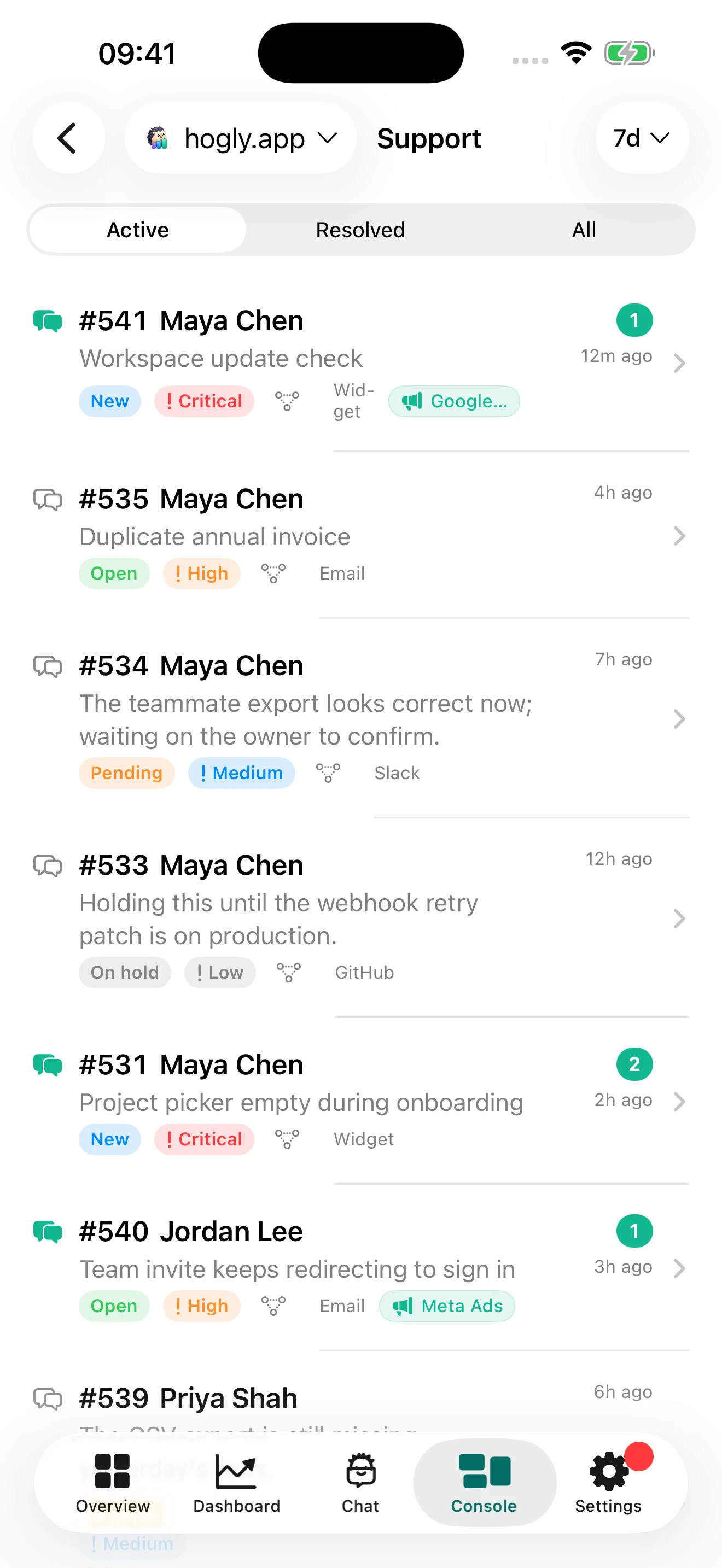
Read the thread before replying. Hogly lets you open the customer profile, inspect available context, and view the reported session replay when one is linked. You can write a customer reply, add a private note, or update the ticket's status and priority from the phone.
If you enable and configure Support reply notifications in Hogly, a notification can take you back to the relevant conversation. This requires notification setup; connecting PostHog alone does not enable background delivery.
Sending replies and managing tickets require Hogly Pro and the relevant PostHog permissions. Hogly asks for the access a supported action needs.
For a detailed walkthrough of reading, replying, and resolving, see our iPhone Support guide.
The screenshots in this article were captured from a fresh local build of Hogly on an iPhone 17 Pro Max Simulator. They use fictional sample conversations and show the real app interface.
A useful reply does not always need a laptop
Imagine a customer reports a confusing setting while you are between meetings. You open the thread, check what they have tried, and send the two steps that get them moving. A conversation that might have waited until the evening can move forward during a short break.
The same approach helps when the answer needs more work. You can acknowledge the specific issue, add a private note about the next investigation step, and give the customer a realistic expectation. You have started helping even though the fix will happen later.
- Less waiting for a first useful response. Simple questions and known workarounds can be handled when you have a moment and a connection.
- Continuity when you leave your desk. The same ticket history stays available, so you can continue the conversation without searching through a separate inbox.
- A smaller gap between a fix and a follow-up. When an update is ready, you can tell the person who reported the problem and ask whether it helped.
- More contact with the people using your product. For an independent developer or a small team, short conversations can keep real customer needs present in everyday decisions.
Mobile access gives you flexibility over when to respond. Set response expectations that fit your team, and use the phone for the parts of the conversation you can handle well in that moment.
Use reply templates to make thoughtful responses easier
Typing the same explanation repeatedly is especially tiring on a phone. Hogly's Reply Templates give you a reusable starting point inside the Support composer.
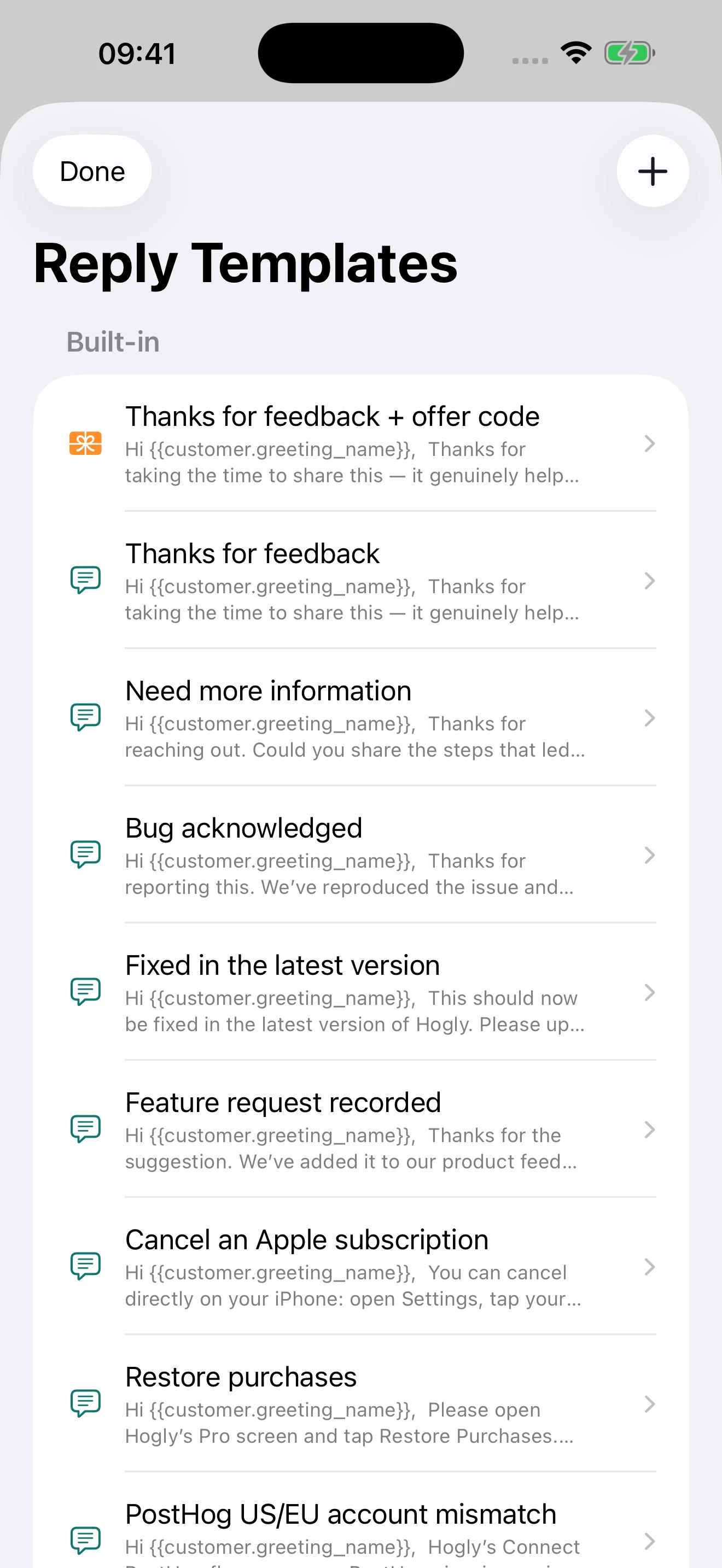
Built-in examples cover thanking someone for feedback, asking for more information, acknowledging a reproduced bug, announcing a fix, recording a feature request, restoring purchases, and other common questions. You can create custom templates for a project, edit built-in wording, and reset a built-in template to its default.
These are your personal Hogly templates. Custom templates and edits are scoped to the project and sync through your private iCloud database across your devices when iCloud is available. They are separate from PostHog Workflows' email templates and are not an organization-wide shared snippet library.
Variables such as {{customer.greeting_name}}, {{ticket.number}}, and {{project.name}} help adapt a reply to the current conversation. For example, a custom acknowledgement could read:
Hi {{customer.greeting_name}},
Thanks for telling us what happened. I've recorded this in ticket #{{ticket.number}} for {{project.name}}. I'll check the reported behavior and update this conversation with what I find.
Open a ticket, tap Reply templates, choose the reply, and review the resulting draft. Add one sentence that addresses the customer's actual problem, then tap Send when it is ready. Selecting a template only prepares the draft.
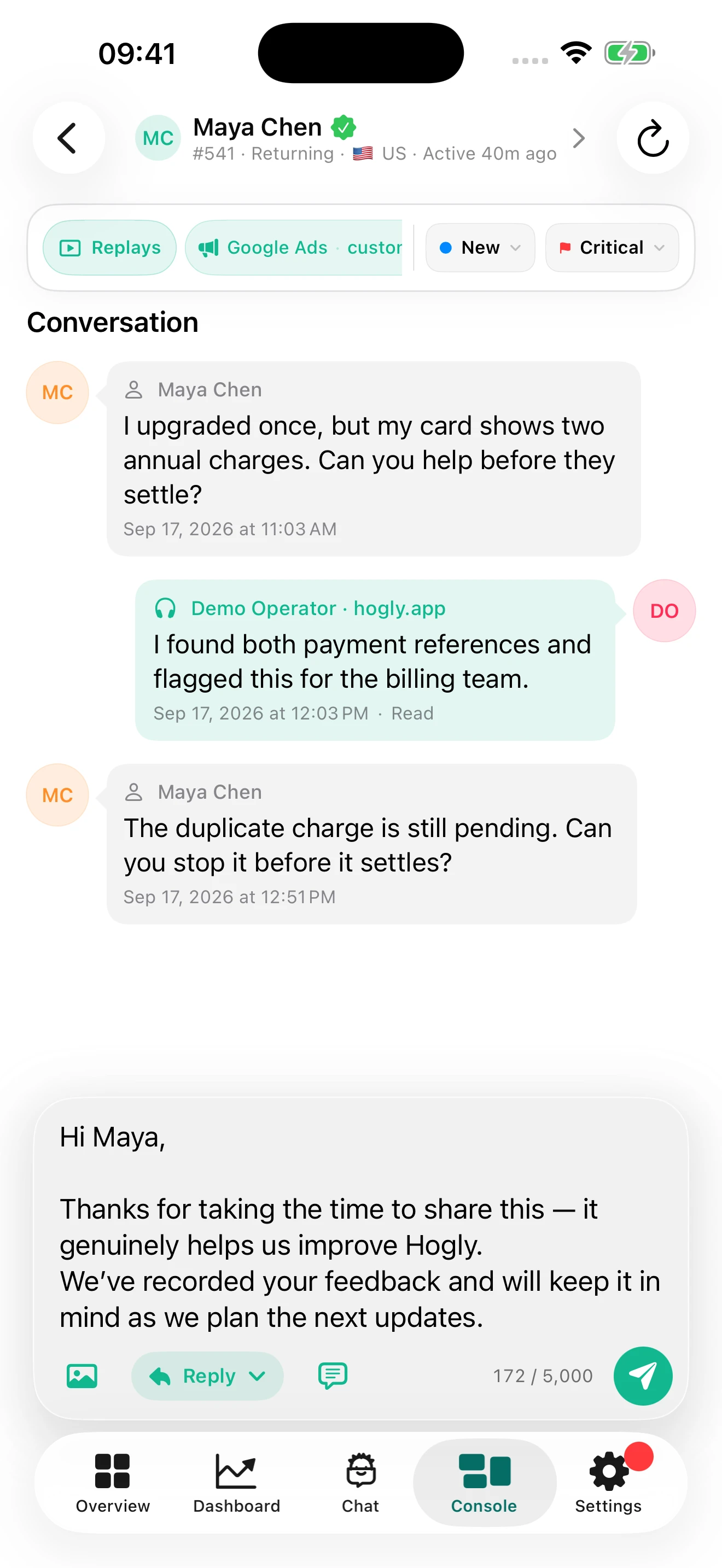
Several built-in examples mention Hogly and its own support situations. Adapt those details for your product. A “bug acknowledged” reply says the issue has been reproduced, so choose it only after that is true; use an acknowledgement while you are still investigating.
A small thank-you for useful feedback
Hogly also includes a Thanks for feedback + offer code template and an Import Offer Codes workflow. With a valid imported batch, offer variables can insert the code, offer label, redemption link, and expiry into the reply.
The send flow includes a confirmation showing the recipient and offer details. Importing codes or selecting the template does not send a gift. You choose the reply and confirm the delivery.
A thank-you can make a thoughtful report feel appreciated. A clear response and a follow-up remain the most important part of that exchange.
Give the customer a reason to keep talking
The valuable part of feedback continues after the first reply. Record what the person was trying to do, look for similar reports, and use the evidence to decide what deserves attention. A request can be worth understanding even when you cannot commit to building it.
When you ship an improvement, return to the original conversation: explain what changed, give any necessary update steps, and ask whether the problem is resolved. That follow-up connects the time the customer spent reporting an issue to something they can see in the product.
Make feedback easy to send with PostHog Support. Keep the context and conversation close with Hogly. Use templates to save the repeated typing, and spend that time understanding what your customer needs.
Quick answers
Frequently asked.
Do customers need to install Hogly to send feedback?
No. Customers use the Support interface you integrate into your product, or another channel connected to PostHog. Hogly is the mobile client used by the person reading and replying to those tickets.
Can I keep my existing support email?
Yes. PostHog documents an email channel that brings incoming email into the Support inbox and sends replies back by email. Configure forwarding and domain verification using its official email setup guide.
Does every ticket have a session replay?
No. Replay availability depends on recording, identity and session linkage, retention, and the data available for that ticket. Enable and verify recording if you want to use it for support investigations.
Are Hogly's reply templates shared with my whole PostHog team?
They are personal and project-scoped. Your custom templates and edits use private iCloud synchronization across your own devices; they are not shared PostHog Workflows email assets.
Does selecting a template automatically send a reply?
No. It fills an editable draft. You review and send the reply yourself. Offer-code replies also require a valid imported offer and a delivery confirmation.