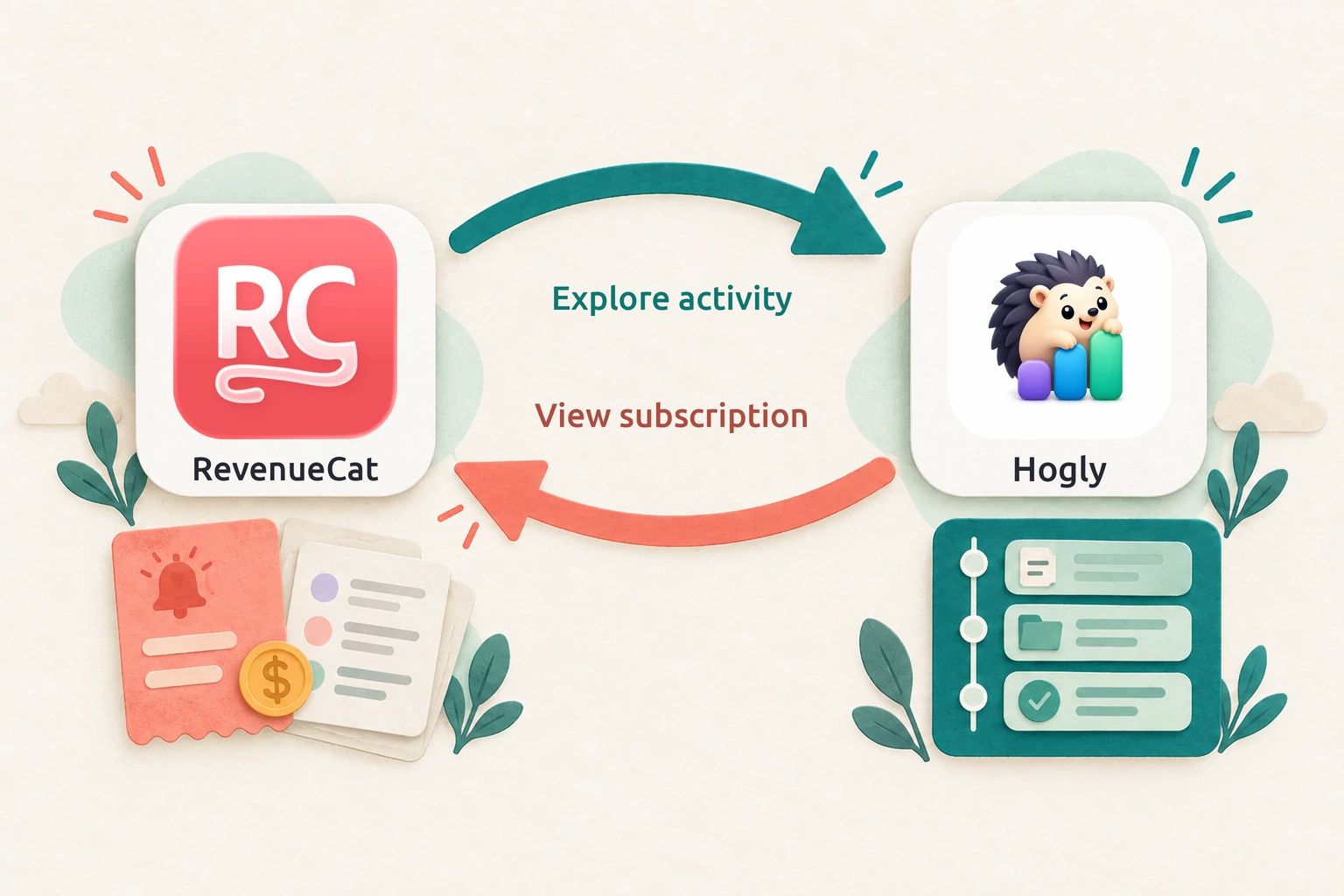
A payment notification is a good moment. It also leaves you with a question: what did this person do before they decided to pay? RevenueCat shows the purchase. Hogly lets you explore the behavior recorded in PostHog around it, then return to the customer's billing history when you need more context.
The short version
- Tap the RevenueCat payment notification to open its customer details, then share to Hogly to open the matching PostHog Person automatically.
- Open Recent activity, inspect an event's properties, and explore the recorded journey around the purchase.
- Return to the customer's RevenueCat page from Hogly to review purchase and subscription events.
Watch the workflow
The demonstration uses fictional data and a locally recreated RevenueCat interface. Hogly runs in its offline demo mode. Repeated pauses are removed. Both automatic app transitions, the activity list, and event details play at normal speed.
Start with the payment
Tap the RevenueCat payment notification. RevenueCat opens the relevant customer details directly, so you can continue from the payment without browsing the Transactions list.
From those details, share the customer link and choose Hogly in the iOS share sheet. Hogly automatically opens the matching Person in your connected PostHog project. There is no customer search or Person selection step.
The shared link carries the RevenueCat project and customer identifiers needed for that automatic navigation. If this is your first share from an unlinked RevenueCat project, Hogly asks which PostHog project it belongs to and remembers that association. This is a one-time project setup, not a request to choose a Person. If iOS shows an Open in Hogly fallback button during the handoff, tapping it continues to the same customer automatically.
The link needs to identify a RevenueCat customer. A transaction screenshot or a link to the project overview does not carry the same information.
Read the activity around the purchase
On the Person page, scroll to Recent activity for a preview of the latest events. Tap the Recent activity heading to open the full activity list, then open an event to inspect its recorded properties. Start with a few practical questions:
- Which recorded features did this person use before paying?
- Did they complete the activation steps you care about?
- How many recorded visits or paywall interactions preceded the purchase?
- Did they return and use the product after paying?
In the video, our fictional Aurora Notes customer creates a folder and a note, enables cloud sync, views the paywall, and buys Aurora Pro Monthly. Those recorded steps give you a concrete journey to investigate. We open the activity list and inspect note_created, including its folder and word count, then scroll back through onboarding and the first app open. Another customer might purchase after several return visits instead.
These are illustrative sequences, not observations about a particular customer. Your view depends on your instrumentation and the data available in PostHog. The timeline can show what happened; it cannot, by itself, establish why someone bought.
If you also send RevenueCat subscription events to PostHog, those events can provide a useful reference point alongside product activity.
Go back to RevenueCat for the subscription story
The workflow also works when you start in Hogly.
Open a Person and tap the RevenueCat customer row. With the corresponding RevenueCat project configured and a usable customer identity, Hogly opens that same customer's RevenueCat details directly, without another customer search. Depending on iOS link handling and whether RevenueCat is installed, the link opens in the app or in the browser, where sign-in may be required.
On the RevenueCat customer page, review the available purchase and subscription history: for example, a trial, initial purchase, renewal, cancellation, or refund. You open the customer first, then inspect the relevant event.
This makes it easy to move between two related questions: what happened to the subscription, and what the person did in the product around that time.
Set up the connection once
The configuration steps are covered in our RevenueCat + PostHog guide, including a separate section on Hogly's RevenueCat Project ID setting.
For this workflow, check that the relevant PostHog project is connected in Hogly with Person access, and that the RevenueCat App User ID in the shared customer link is one of that Person's PostHog distinct IDs. Hogly needs an established identity match; it does not guess a match from a name or email address.
The project association selects a destination. It does not send subscription events to PostHog or merge customer identities.
If the integration uses a different PostHog user ID from the RevenueCat App User ID, verify that both identifiers resolve to the same Person before relying on the share workflow.
The next time a payment notification arrives, tap it to open the customer details, then share to Hogly. The matching Person opens automatically, ready for you to explore the recorded journey around the purchase.
Quick answers
Frequently asked.
What do I share from RevenueCat?
Share the customer link and choose Hogly in the iOS share sheet. Hogly uses the RevenueCat project and customer identifiers in that URL to automatically open the matching Person in your connected PostHog project; you do not search for or select a Person.
Does Hogly match customers by email or name?
No. The RevenueCat App User ID in the link must resolve to the same PostHog Person. Linking a project chooses the destination; it does not merge identities or infer a match from a name or email address.
Can I open RevenueCat from a Hogly Person?
Yes. Configure the corresponding RevenueCat Project ID and use the RevenueCat customer row on the Person page. The customer link opens in the app or browser, depending on iOS link handling. Open the customer first, then inspect the billing event you need.