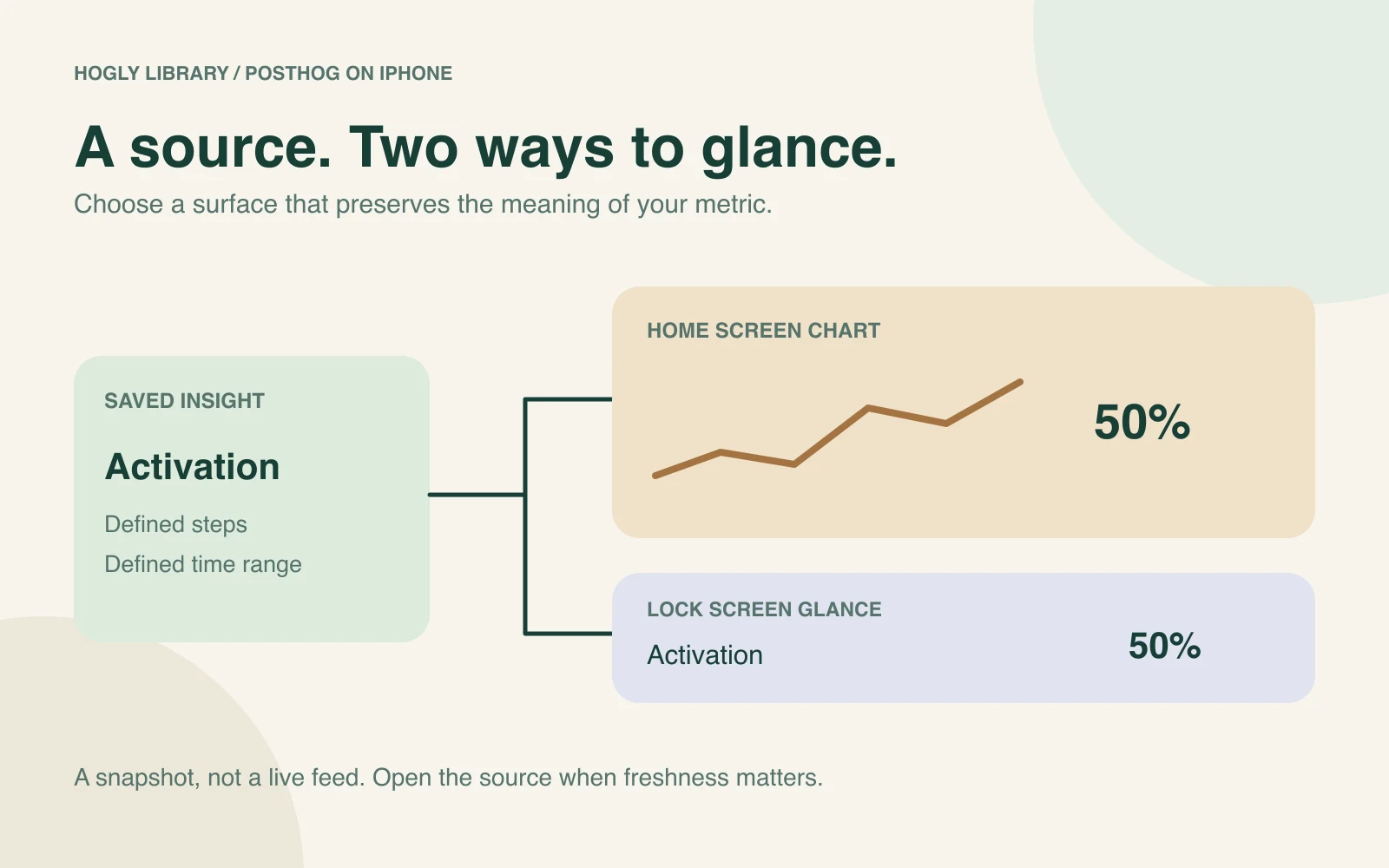
Yes. Hogly can display compatible PostHog Insights and Overview cards as iPhone widgets. Use a Home Screen chart for context or a supported Lock Screen glance for a compact summary. Widgets require Hogly Pro, and iOS controls refresh scheduling.
The short version
- A widget displays a snapshot; a website shortcut only opens a page.
- Home Screen chart support is broader than Lock Screen summary support.
- Check the source, date range, and freshness before treating a widget value as current.
Is a PostHog widget different from a Safari shortcut?
Yes. A shortcut on your Home Screen opens a website. A data widget shows information before you open the app. If you want to glance at a trend between meetings, a widget can reduce the steps; if you need the full analytics workspace, opening the source is still the useful next action.
Hogly widgets use compatible saved Insights or Overview cards. That gives the widget a defined source instead of an unrelated number with the same label. Tapping a configured widget takes you back toward that source in Hogly, where there is room to investigate.
Compatibility was reviewed October 16, 2026 against Hogly's widget source definitions. The illustration is conceptual, not a screenshot or a promise of a particular refresh time.
Which charts can I put on the Home Screen?
Hogly supports number, line, cumulative line, area, bar, stacked bar, Bar Value, funnel, stickiness, lifecycle, retention, and pie source families for Home Screen widgets. A source still needs a compatible result; being in a supported family does not make every possible query payload usable.
Tables, box plots, world maps, calendar heatmaps, and user-path charts are outside the current widget chart family list. Keep those in the app or PostHog web. The setup interface is the practical check for the specific saved Insight you want to add.
For a daily-active-user check, choose the Insight that actually defines your active event, population, and date range. A generic event total does not become DAU because you give the widget that name. For a funnel, preserve the step definitions and conversion window; our worked funnel example explains why the denominator matters.
Why is my chart unavailable on the Lock Screen?
A Lock Screen glance needs a meaningful compact value. Some Home Screen charts depend on several series, categories, or a matrix; compressing those into one arbitrary number would lose the question the chart answers.
Hogly considers number, funnel, and lifecycle sources for compact glances. Line, cumulative line, area, and bar sources need a suitable single-series result without a breakdown. Stacked bar, stickiness, Bar Value, retention, and pie sources are not offered as Lock Screen glances. The actual loaded result can further restrict compatibility.
If your chart is unavailable there, use its Home Screen version or create a separate, clearly named summary Insight whose calculation you understand. Do not substitute the first category for a total just to make it fit. Also consider whether the metric is appropriate to display on a visible Lock Screen.
How do I add a PostHog widget?
First connect the intended project in Hogly, confirm Pro access, and open the saved Insight or Overview card. Use its widget setup action to inspect compatibility and the available surface and size. Check the source name and project before continuing.
- On the iPhone Home Screen, enter edit mode and open the widget gallery.
- Find Hogly, select the chart widget and an appropriate size, then add it.
- Edit the widget configuration and select the intended project and source.
- Check the displayed metric and tap it to confirm that it leads to the source you intended.
For a Lock Screen glance, use the Lock Screen customization flow and select a compatible Hogly source. Labels and placement controls can vary with iOS. Follow the in-app setup guidance for your version rather than assuming a Home Screen configuration will automatically appear on the Lock Screen.
If the source is absent, reopen it in Hogly and check compatibility, project selection, and access. A saved chart is not automatically a supported widget.
How often does the widget update?
There is no guaranteed wall-clock interval. Apple controls widget scheduling and applies refresh budgets, as described in its WidgetKit update guidance. A requested refresh is not a promise that the system will run it at that exact moment.
Network availability, credentials, source availability, and cached data can also affect what you see. Read the update or cached-state information shown by the widget, then open the source in Hogly when a decision depends on a fresh value. A snapshot can remain useful while still being older than the current web result.
Widgets are useful for noticing a change and deciding to investigate. Do not treat them as real-time alert delivery or as proof that nothing changed since the last successful fetch.
What should I check if the widget is blank or looks wrong?
Work from the source outward. Can you open the exact Insight in the intended project inside Hogly? Does it have a usable result? Does the selected widget surface support that result? Is Pro active, and does the PostHog connection have the required access?
If the source loads but the widget looks old, compare its freshness information before changing configuration. If the wrong metric appears, check both the project and source selection; projects can have similarly named Insights. If the query has changed since setup, revisit its compatibility and available presentation.
Do not interpret a missing or unavailable value as zero. Record what the app and widget show, their timestamps, and the source identity when reporting a problem. That is far more actionable than a cropped number without its context.
What makes a useful first widget?
Choose one metric that changes what you do: a clearly defined activation funnel, a trend you review daily, or a relevant Overview card. Give it a recognizable name and keep its time range understandable. Add another only when it answers a different recurring question.
The recorded tour has a widget chapter with fictional sample data. For choosing the app itself, return to the PostHog iPhone app guide; for deeper investigation after a metric moves, use People and user activity.
Quick answers
Frequently asked.
Can Hogly show a funnel as an iPhone widget?
Supported funnel sources can be displayed as Home Screen charts and, when the result is compatible, Lock Screen glances. Check the actual source in widget setup.
Are Hogly widgets free?
Widgets require Hogly Pro and access to the relevant PostHog data. Check the current purchase terms and any eligible trial in the app.
Will a PostHog widget refresh in real time?
No real-time interval is guaranteed. iOS schedules widget updates, and connectivity, access, and cached data affect freshness.
Why can I see a chart in Hogly but not add it as a widget?
The app and widget renderers support different presentations. The source must be compatible with the chosen Home or Lock Screen surface and have a usable result.