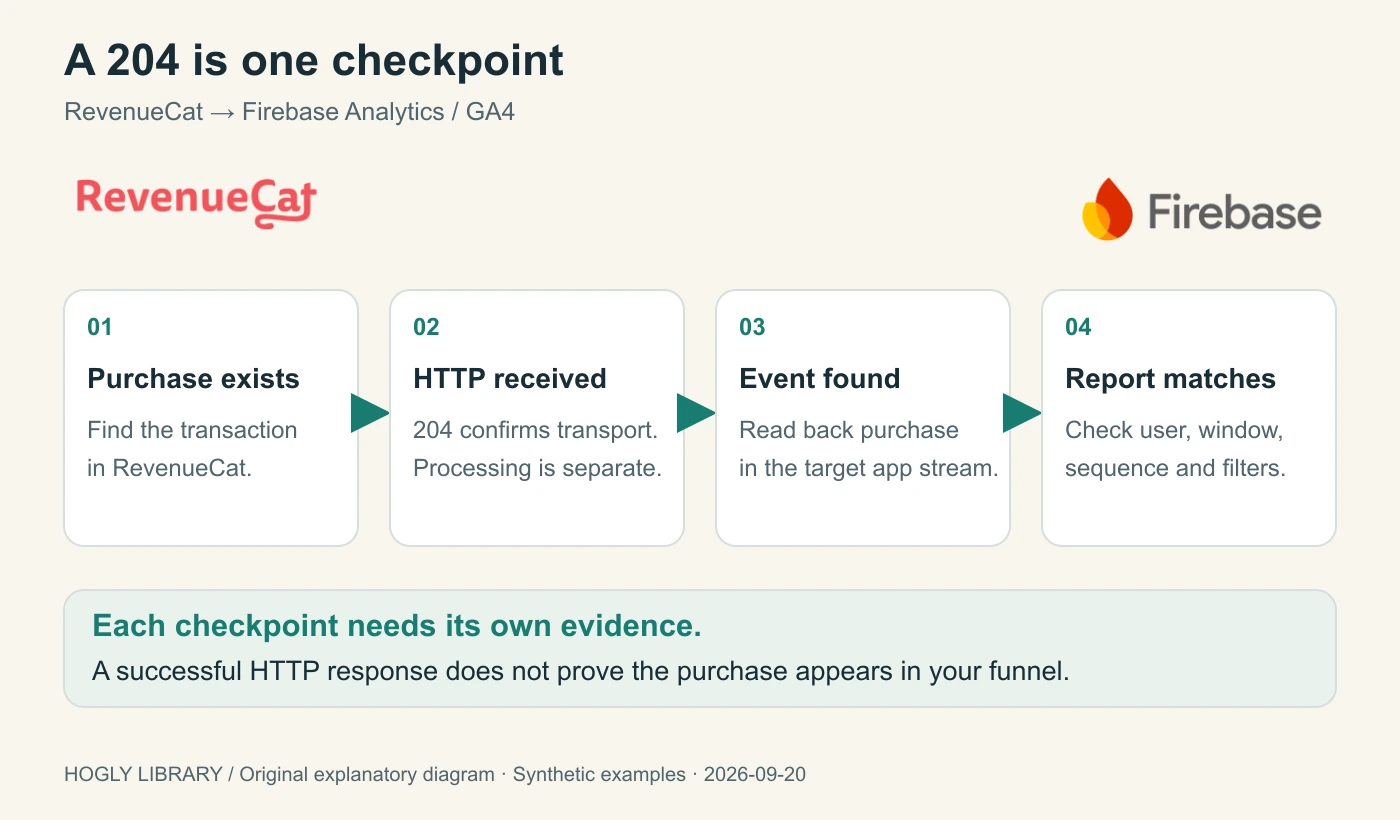
A 204 response from Google Analytics confirms that the HTTP request was received. It does not prove that the purchase was processed, attached to the intended app installation, or included in your funnel. Check the Analytics app instance ID first, then verify the target event and the report separately.
The short version
- Use the Firebase Analytics SDK’s app instance ID; a Firebase Auth UID is a different identifier.
- Record delivery, event receipt, and report membership as separate checkpoints.
- Treat synthetic examples as a diagnostic worksheet, then verify a fresh sandbox purchase in your own project.
Start with one purchase you can trace
Pick one recent sandbox transaction and one test account. Write down its product, environment, purchase time, RevenueCat customer ID, and transaction identifier. Keep that same case through every check. Looking at a production revenue chart while testing a sandbox purchase makes an ordinary scope mismatch look like data loss.
In a March 2026 RevenueCat issue, a developer reported 204 responses and no Firebase events. The discussion revealed that an application login ID was being passed as the Firebase app instance ID. The issue was closed after support identified that mismatch; the public thread does not contain a successful post-fix readback. It is a useful diagnostic example, not evidence of a current SDK-wide outage.
This guide is a documentation-based troubleshooting workflow. The IDs and event fragments below are synthetic; we did not send them to a vendor account or measure ingestion latency. For platform selection, start with our PostHog vs Firebase comparison for iOS subscription apps. Here, the integration already exists and the question is where one purchase stops being observable.
What a 204 does—and does not—prove
Google’s Measurement Protocol reference says a 2xx response means the HTTP request was received. Incorrect, malformed, or unprocessed data does not necessarily produce an HTTP error. The status is therefore evidence for one transport step, not an end-to-end receipt.
| Checkpoint | Evidence to retain | What is still unproven |
|---|---|---|
| Subscription event | The selected transaction in RevenueCat Customer History. | Whether an analytics integration attempted delivery. |
| HTTP delivery | Destination and response for that integration attempt. | Whether Google processed the payload. |
| Target event | The purchase in the intended Analytics app stream and time range. | Whether it joins the intended customer journey. |
| Report result | The same case satisfies the funnel’s steps, identity, window and filters. | Whether all other transactions reconcile. |
Stop at the first checkpoint without evidence. Do not add a second client-side purchase emitter merely to make a chart move: that introduces another event source before you understand the original path. Keep app interaction events, such as tapping Buy, distinguishable from confirmed subscription lifecycle events.
Separate account identity from app installation identity
RevenueCat’s Firebase integration guide requires $firebaseAppInstanceId for Analytics and explicitly says to obtain it from Firebase Analytics. Setting an incorrect value prevents events from displaying. Firebase Auth identity is a separate concern.
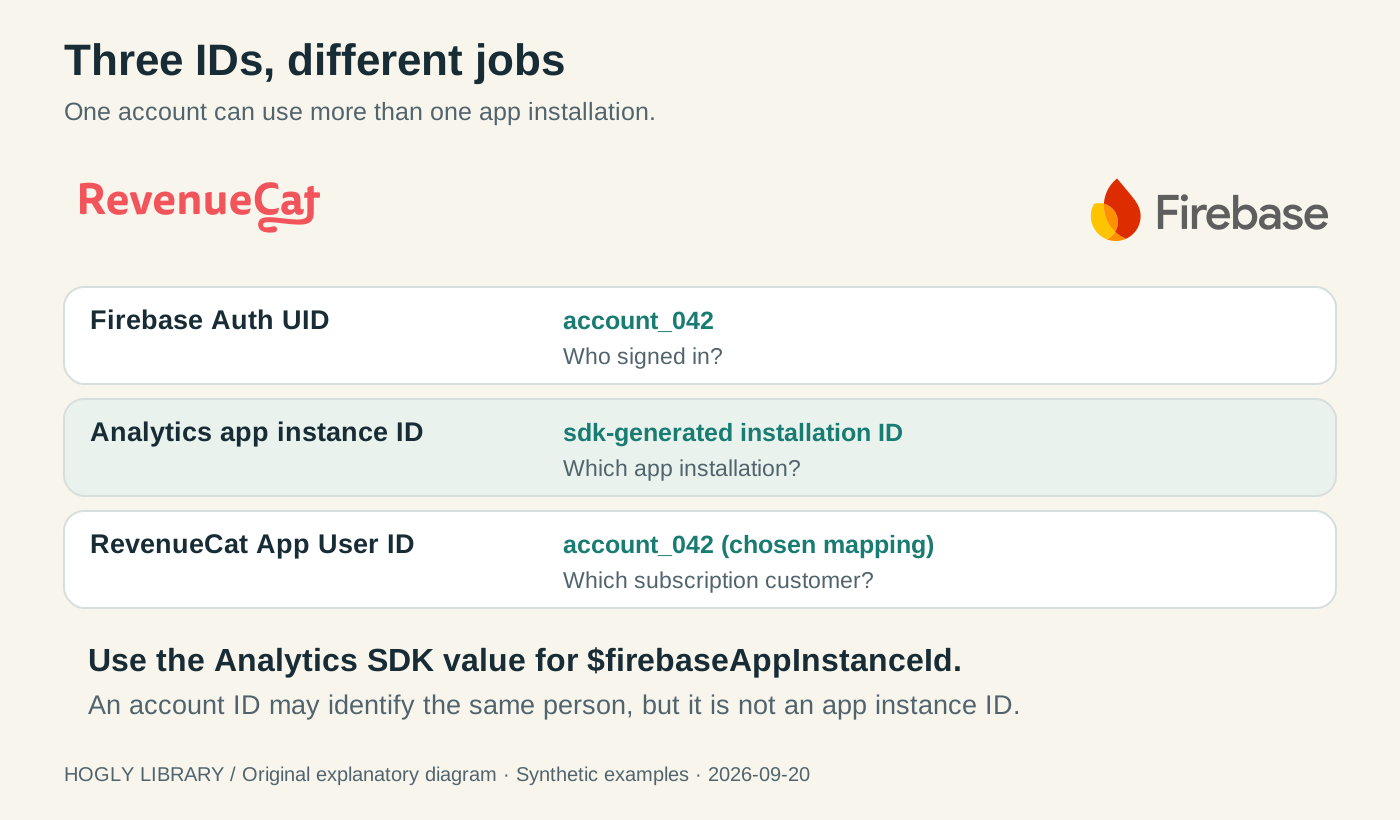
| Field | Example or source | Check |
|---|---|---|
| Firebase Auth UID | account_042 | Your authenticated account identity. Do not pass it as the Analytics installation ID. |
| Analytics app instance ID | Read from the Analytics SDK on this installation. | Pass the exact returned value into the RevenueCat attribution setter. Handle a missing value explicitly. |
| RevenueCat App User ID | account_042 in this chosen design | Check the actual customer receiving the purchase and its attributes. |
| Firebase App ID | The target iOS or Android app stream configuration. | This identifies an app configuration, not an individual installation or person. |
For an iOS implementation, the official example reads Analytics.appInstanceID() and passes its value to Purchases.shared.attribution.setFirebaseAppInstanceID(...). Use the API exposed by your installed SDK or wrapper; do not copy a method name from a different platform. Record SDK versions with the test.
A missing SDK value is a failed prerequisite to investigate, not a reason to substitute an email, Auth UID, random UUID, or web client ID. If your collection settings or app lifecycle mean Analytics is unavailable at that moment, record that state and retry the prerequisite at the appropriate point in your app flow.
Use a timeline to expose the wrong assignment
The following timeline is an original reasoning fixture, not a log from Firebase. It compares one mistaken assignment with the intended source of the value; it does not invent a valid Analytics installation ID.
| Time | Observed application action | Interpretation |
|---|---|---|
| 09:00 | Authentication returns account_042. | You know the account; Analytics identity has not yet been checked. |
| 09:01 — wrong branch | The app calls the attribution setter with account_042. | A real account ID has been put in the wrong field. A later 204 cannot validate it. |
| 09:01 — intended branch | The app reads the Analytics SDK value and sets that exact value. | The source is correct; inspect the attribute on the purchasing customer before testing. |
| 09:02 | A new sandbox purchase is made. | Retain its transaction and delivery record. |
| After delivery | Search the correct app stream for the matching purchase. | Only target-side evidence demonstrates this new event arrived. |
Use the downloadable synthetic worksheet to record your own expected and observed values. It contains no keys or usable installation IDs. A corrected mapping for a new purchase does not establish that earlier purchases were replayed or backfilled; investigate historical recovery separately before resending anything.
Check the destination and the event you are actually looking for
Inspect the RevenueCat customer associated with the selected purchase, not merely the most recently viewed account. Then compare the integration’s Firebase app configuration with the app stream you opened in Analytics. Check the platform, environment, purchase timestamp, report timezone, and whether the attributes were present before the test.
The current Firebase integration maps initial purchases and renewals, including paid trial conversions, to purchase; trial starts use rc_trial_start. Looking only for in_app_purchase can therefore miss the event this integration is documented to send. Use the current event mapping and your actual configuration.
For the target-side check, temporarily remove optional chart filters and use a narrow but sufficient time range around the transaction. Compare the product and transaction fields available in your event inspection surface. If that surface aggregates away those fields, do not claim you have matched the exact transaction based on a total alone; retain a more specific record or state the limitation.
Keep a short note for each layer: present, absent, or not observable. “Not observable in this report” is a more useful finding than “Firebase lost it,” because it tells the next person which evidence is still missing.
Validate payload shape without confusing it with ingestion
Google provides a Measurement Protocol validation endpoint and Event Builder. Validation requests use /debug/mp/collect. They do not appear in reports, and the validator does not verify api_secret or firebase_app_id. An empty validation message list is therefore a schema check, not proof of correct destination or delivery.
If you control a separate custom sender, validate its representative test payload before using its collection endpoint. For a managed RevenueCat integration, inspect the available delivery evidence and use support when the payload or destination cannot be established. Do not assume you can redirect the managed integration to Google’s validator from your app code.
Avoid manually recreating and sending the same paid transaction while the integration is active. First decide which sender owns it and how duplicates would be detected. Changing the ID, event name, destination, and sender together makes the result impossible to attribute to one correction.
The event exists, but the funnel still shows zero
A March 2026 GA4 community question describes RevenueCat purchase events visible in Events but zero users at the purchase step of a funnel. The thread is locked without a confirmed cause. It illustrates a distinct symptom; it does not establish a universal session-ID fix.
Once you can locate the event, switch the investigation from transport to the report definition. Compare the purchase’s identity with earlier steps, event names and parameters, the conversion window, event ordering, audience or segment filters, and the selected dates. Ask whether the earlier action and later purchase are supposed to belong to the same app installation, account, or session. Write that expectation before changing tracking.
Google’s protocol reference documents session and engagement parameters, but adding a fabricated session identifier to a server-side renewal would not prove that it belonged to the earlier app session. A renewal can happen while the app is closed. Separate “did this customer renew?” from “did this session lead to a purchase?” and build the report for the question you intend.
Keep Firebase Analytics separate from the Firebase extension
RevenueCat documents two independently usable components: Analytics event delivery and the Firebase extension for Firestore/customer data and Auth claims. An extension error is not, by itself, an Analytics ingestion failure. The extension’s identity requirements are different; consult the Firebase user identity requirements for that path.
A useful support handoff includes the platform and SDK versions, one test transaction, the intended app stream, the actual source of each identifier, attribute timing, the delivery response, and a target-side search with its filters. Redact secrets and unnecessary customer details. Label every claim as observed, expected, or unknown.
You are finished with the new-event test when the purchasing customer has the intended identifier source, the integration attempted the correct destination, and the matching target event can be inspected. Funnel membership and historical recovery are separate acceptance checks. If your next task is joining acquisition to subscriptions in PostHog, our RevenueCat acquisition-to-revenue guide covers that setup.
Quick answers
Frequently asked.
Does a 204 response mean Firebase saved the purchase?
No. Google documents 2xx as receipt of the HTTP request, not a guarantee that the payload is valid or processed. Verify the event in the intended Analytics app stream.
Can I use the Firebase Auth UID as $firebaseAppInstanceId?
No. Read the app instance ID from Firebase Analytics. The Auth UID describes an authenticated account and serves a different purpose.
Why can the purchase appear in Events but not in a funnel?
Receiving an event and satisfying a funnel are different checks. Review identity, step definitions, ordering, conversion window, dates, and filters. The symptom alone does not identify one cause.
Will Google’s validation endpoint put my event in reports?
No. Validation requests do not appear in reports, and the validator does not validate the API secret or Firebase App ID.
Will correcting the ID recover historical purchases?
A successful new test does not prove historical replay or repair. Establish the affected transactions and supported recovery path before resending events.